Enhancing the Look of CSS Checkboxes and Radio Buttons Without JavaScript
If you’re looking to customize the appearance of checkboxes or radio buttons using just CSS, you’re in the right place. This guide will walk you through the process step-by-step, allowing you to create stylish and functional form elements without the need for JavaScript.
Customizing CSS Checkboxes
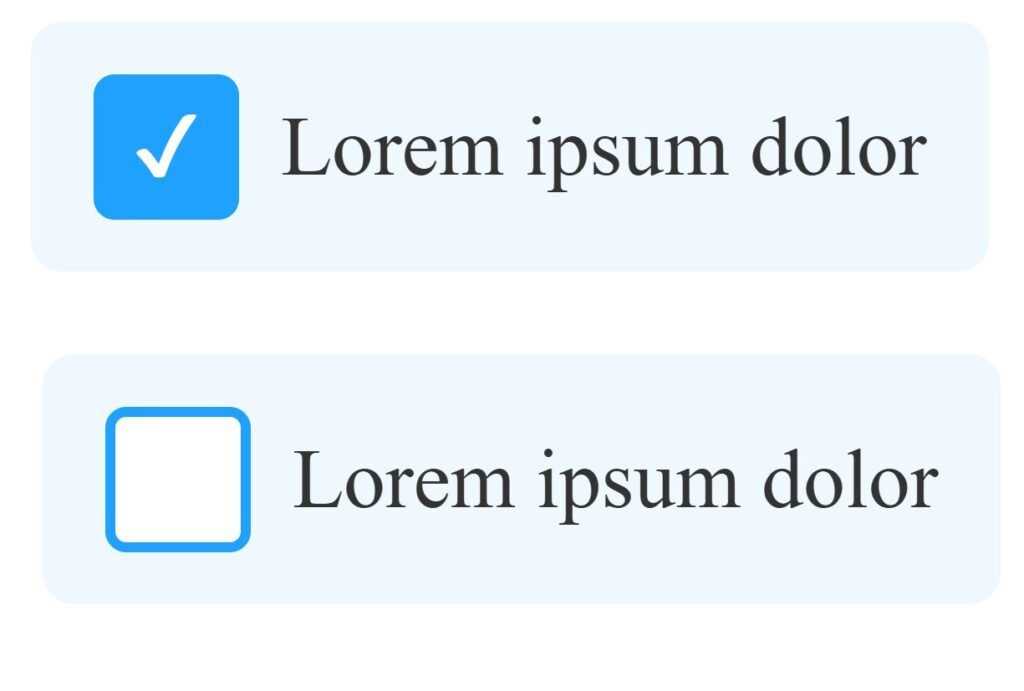
Let’s start by styling a checkbox. Here’s the HTML structure we’ll use:
<label>
    <input class="radio" type="radio" name="radio-test">
    <span class="radio-custom"></span>
    <span class="label">Lorem ipsum dolor sit amet, consectetur</span>
</label>
This markup consists of three key elements:
.checkbox: This is the actual checkbox input..checkbox-custom: This is the custom element that we’ll style to look like a checkbox..label: This is the label text displayed to the right of the checkbox.
Remember, all these elements must be wrapped in a <label> tag for the functionality to work seamlessly. If you want the checkbox to be checked by default, simply add the checked attribute to the input element.
Adding the CSS
Now, let’s add the CSS styles to bring our custom checkbox to life:
<style>
/* Hide the native checkbox */
.checkbox {
  display: none;
}

/* Base styles for the custom box */
.checkbox-custom {
  position: relative;
  width: 24px;
  height: 24px;
  border: 2px solid #888;
  border-radius: 4px;
  background: #fff;
  transition: border-color 0.2s, background-color 0.2s;
  cursor: pointer;
  margin-right: 8px;
}

/* Hover / focus state */
label:hover .checkbox-custom,
.checkbox:focus + .checkbox-custom {
  border-color: #1fa2ff;
}

/* Checked state background */
.checkbox:checked + .checkbox-custom {
  background: #1fa2ff;
  border-color: #1fa2ff;
}

/* Checkmark */
.checkbox:checked + .checkbox-custom::after {
  content: "✔";
  position: absolute;
  top: 50%;
  left: 50%;
  transform: translate(-50%, -55%);
  font-size: 16px;
  color: white;
}

/* Label text styles */
.label {
  display: inline-block;
  vertical-align: middle;
  font-size: 16px;
  color: #333;
  cursor: pointer;
}

/* Spacing and padding for touch friendliness */
label {
  display: inline-flex;
  align-items: center;
  padding: 10px 12px;
  border-radius: 6px;
  transition: background-color 0.2s;
}

/* Label hover background */
label:hover {
  background-color: #f0f8ff;
}
</style>
If you’re familiar with basic CSS, this should be straightforward. For beginners, here’s a quick breakdown:
- Hiding the Real Checkbox: We hide the actual checkbox because styling it directly across browsers is challenging. Instead, we use a trick—hide the real checkbox and display a custom-styled box (
.checkbox-custom). - Styling the Custom Checkbox: We position this custom element relative to its container and set its dimensions and border properties.
- Reflecting the Checked State: When the real checkbox is checked, the custom checkbox displays a pseudo-element (
::before) that acts as a visual indicator, like a tick or a filled box.
Customizing Radio Buttons
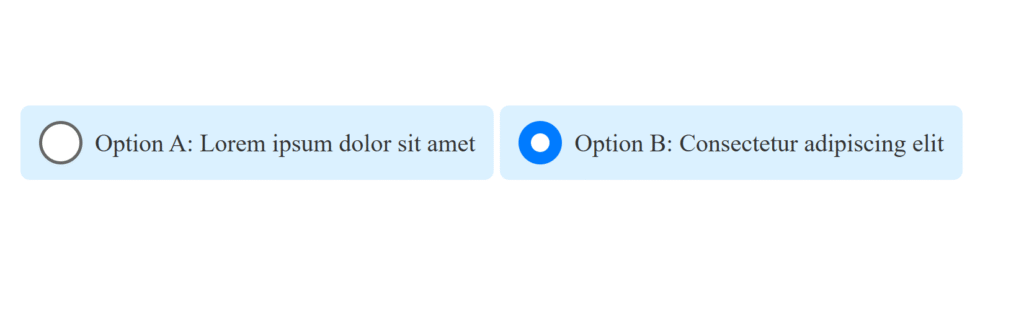
Styling radio buttons follows a similar approach. Here’s the HTML structure:
<label>
    <input class="radio" type="radio" name="radio-test">
    <span class="radio-custom"></span>
    <span class="label">Option A: Lorem ipsum dolor sit amet</span>
  </label>

  <label>
    <input class="radio" type="radio" name="radio-test">
    <span class="radio-custom"></span>
    <span class="label">Option B: Consectetur adipiscing elit</span>
  </label>
And the corresponding CSS:
<style>
    :root {
      /* Accessible blue accent and a darker shade for hover */
      --accent: #007bff;
      --accent-dark: #0056b3;
      --border-default: #666;
    }

    /* Hide the native inputs */
    .checkbox,
    .radio {
      display: none;
    }

    /* Base box styles */
    .checkbox-custom,
    .radio-custom {
      position: relative;
      width: 24px;
      height: 24px;
      border: 2px solid var(--border-default);
      background: #fff;
      cursor: pointer;
      margin-right: 8px;
      transition: none; /* remove smooth transition per request */
    }

    /* Radio circle */
    .radio-custom {
      border-radius: 50%;
    }

    /* Hover: just darken the border/background */
    .checkbox-custom:hover,
    .radio-custom:hover {
      border-color: var(--accent-dark);
    }
    .checkbox:checked + .checkbox-custom:hover,
    .radio:checked + .radio-custom:hover {
      background: var(--accent-dark);
      border-color: var(--accent-dark);
    }

    /* Checked: solid accent color */
    .checkbox:checked + .checkbox-custom,
    .radio:checked + .radio-custom {
      background: var(--accent);
      border-color: var(--accent);
    }

    /* Checkmark for checkbox */
    .checkbox:checked + .checkbox-custom::after {
      content: "✔";
      position: absolute;
      top: 50%;
      left: 50%;
      transform: translate(-50%, -55%);
      font-size: 16px;
      color: #fff;
    }

    /* Inner dot for radio */
    .radio:checked + .radio-custom::after {
      content: "";
      position: absolute;
      width: 12px;
      height: 12px;
      background: #fff;
      border-radius: 50%;
      top: 50%;
      left: 50%;
      transform: translate(-50%, -50%);
    }

    /* Label text and spacing */
    .label {
      font-size: 16px;
      color: #333;
      cursor: pointer;
	  background: #c8e9ffa6;
    }

    /* Entire label area for better hit target */
    label {
      display: inline-flex;
      align-items: center;
      padding: 10px 12px;
      border-radius: 6px;
      /* no hover background per request */
    }
  </style>
Final Thoughts
This method is convenient and does not require JavaScript, allowing your forms to behave as expected, even when resetting. The only drawback is the need for “empty” elements like .checkbox-custom and .radio-custom, which serve no semantic purpose in the HTML. However, with a bit of creativity, you can replace these with pseudo-elements, eliminating the need for extra markup.
Quick answer about CSS (HTML) Checkbox and Radio Styling | .checkbox-custom / .radio-custom) Button Tricks
Summary: This page gives visitors a clearer explanation of CSS (HTML) Checkbox and Radio Styling | .checkbox-custom / .radio-custom) Button Tricks, why it matters, and what they can do next on Ozairwebs.
What this page should help users understand
A helpful page should answer the main question quickly, then support that answer with useful details, clear headings, examples, and next steps. It should avoid empty filler and should not make unsupported claims.
- Main topic: CSS (HTML) Checkbox and Radio Styling | .checkbox-custom / .radio-custom) Button Tricks.
- Related context: Services, Web, WordPress, Development, Seo, Free, Commerce, Found.
- Recommended next step: review the details on this page and open a related page when more context is needed.
Useful context
This section improves readability, answer extraction, semantic coverage, and user navigation. It is intentionally written with safe wording so the website owner can refine exact business details later without losing the page structure.
Helpful related pages
Visitors can use the following internal pages to verify details or continue their journey.
- Web Design, WordPress & SEO in Pakistan for Global Brands | OZAIR WEBS
- Privacy Policy Page | OZAIR WEBS
- Contact us
- About us
- Custom Schema Injector (Post, product, pages, and custom archives)
- WordPress Automatic Plugin: Import Amazon Product to WooCommerce
- The Importance of SEO in SaaS Business Websites: Practical Strategies for Founders and
- How to Show Google Reviews on WordPress Without Plugins 2025: A Beginner-Friendly Guide
Frequently asked questions
1What should visitors know about CSS (HTML) Checkbox and Radio Styling | .checkbox-custom / .radio-custom) Button Tricks before continuing?
CSS (HTML) Checkbox and Radio Styling | .checkbox-custom / .radio-custom) Button Tricks covers the key details visitors need on Ozairwebs; related pages linked below add further specifics.
2Where can visitors find more detail on this topic?
Related internal links, product or category pages, and the website contact options below provide more specific information.
3Who should visitors contact with questions about CSS (HTML) Checkbox and Radio Styling | .checkbox-custom / .radio-custom) Button Tricks?
Visitors can use Ozairwebs’s contact or support options for questions this page does not fully answer.
Quick answer about CSS (HTML) Checkbox and Radio Styling | .checkbox-custom / .radio-custom) Button Tricks
Summary: This page gives visitors a clearer explanation of CSS (HTML) Checkbox and Radio Styling | .checkbox-custom / .radio-custom) Button Tricks, why it matters, and what they can do next on Ozairwebs.
What this page should help users understand
A helpful page should answer the main question quickly, then support that answer with useful details, clear headings, examples, and next steps. It should avoid empty filler and should not make unsupported claims.
- Main topic: CSS (HTML) Checkbox and Radio Styling | .checkbox-custom / .radio-custom) Button Tricks.
- Related context: Services, Web, WordPress, Seo, Development, Commerce, Solution, Mobile.
- Recommended next step: review the details on this page and open a related page when more context is needed.
Useful context
This section improves readability, answer extraction, semantic coverage, and user navigation. It is intentionally written with safe wording so the website owner can refine exact business details later without losing the page structure.
Helpful related pages
Visitors can use the following internal pages to verify details or continue their journey.
- Web Design, WordPress & SEO in Pakistan for Global Brands
- Contact us Information | Ozairwebs
- Privacy Policy Page | OZAIR WEBS
- About us
- WordPress Automatic Plugin: Import Amazon Product to WooCommerce
- Custom Schema Injector (Post, product, pages, and custom
- Protect Your WordPress Content from Copying and Right-Click with functions.php and
- The Importance of SEO in SaaS Business Websites: Practical Strategies for Founders and
Frequently asked questions
1What should visitors know about CSS (HTML) Checkbox and Radio Styling | .checkbox-custom / .radio-custom) Button Tricks before continuing?
CSS (HTML) Checkbox and Radio Styling | .checkbox-custom / .radio-custom) Button Tricks covers the key details visitors need on Ozairwebs; related pages linked below add further specifics.
2Where can visitors find more detail on this topic?
Related internal links, product or category pages, and the website contact options below provide more specific information.
3Who should visitors contact with questions about CSS (HTML) Checkbox and Radio Styling | .checkbox-custom / .radio-custom) Button Tricks?
Visitors can use Ozairwebs’s contact or support options for questions this page does not fully answer.